
English
Mac requires HBuilderX 3.6.9+;
Win requires HBuilderX 3.6.20+
Because Apple prohibits enterprise certificates from being used by non-enterprise internal developers. Therefore, developers can no longer use DCloud's standard operating base signed by the enterprise certificate.
Before running the standard base to the real iOS device, the base needs to be signed with the developer's certificate before it can run. (Runs to xcode simulator unrestricted)
注意: HBuilderX每次升级,因为标准基座更新,需要重新对iOS标准基座进行签名。
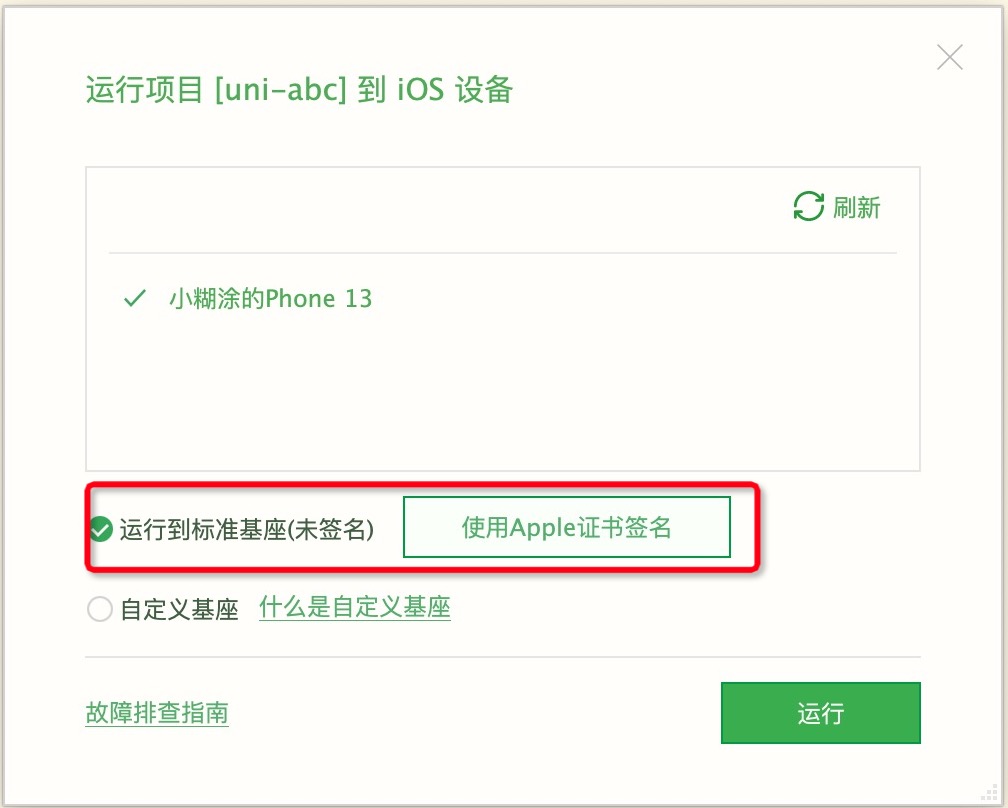
Select any App item, click the run icon on the toolbar, select [Run to iOS App Dock], and in the pop-up window, click the button [Sign with Apple Certificate], as shown in the figure below
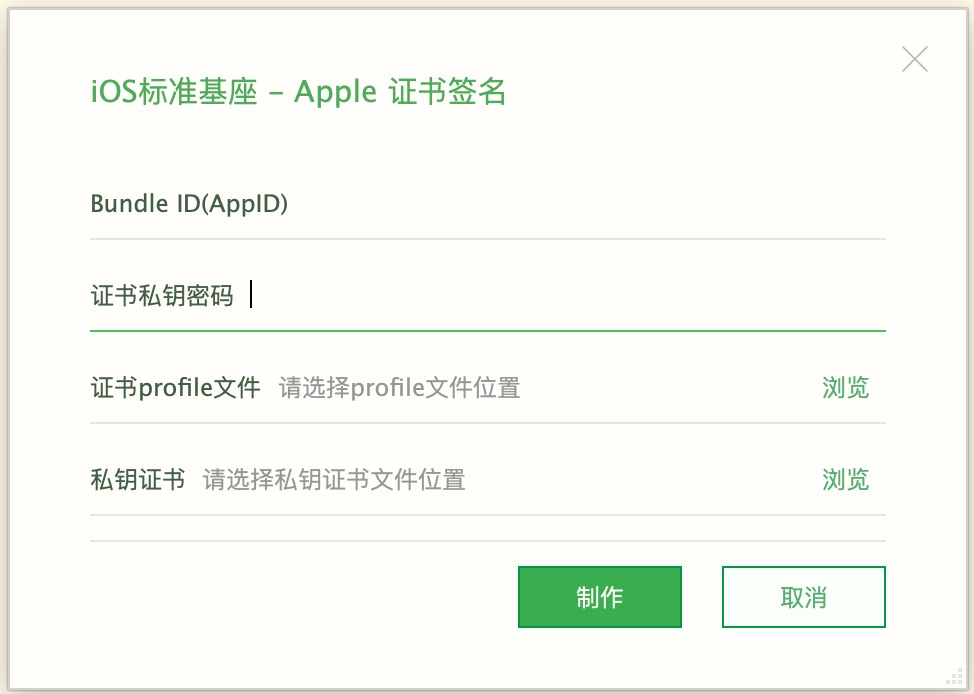
In the iOS standard base signature window, enter Bundle ID, Certificate Private Key Password, Certificate Profile File, Private Key Certificate P12 File to complete the signature.
提示
项目中包含uts插件,在 Mac OS 系统中如果安装了 XCode 环境,在以下情况下会重新编译 uts插件,自动弹出重签名界面。
清除构建缓存uts插件的源码项目中包含uts插件时,在 Mac OS 系统存在 XCode 时会自动编译uts插件,这时需要对安装包重新签名,这种场景不适用其它签名方案,请使用HBuilderX自带签名功能。
For Windows systems, versions below HBuilderX 3.6.20 do not have a built-in re-sign function. Developers can use third-party tools (such as Aisi Assistant) to sign the standard base.
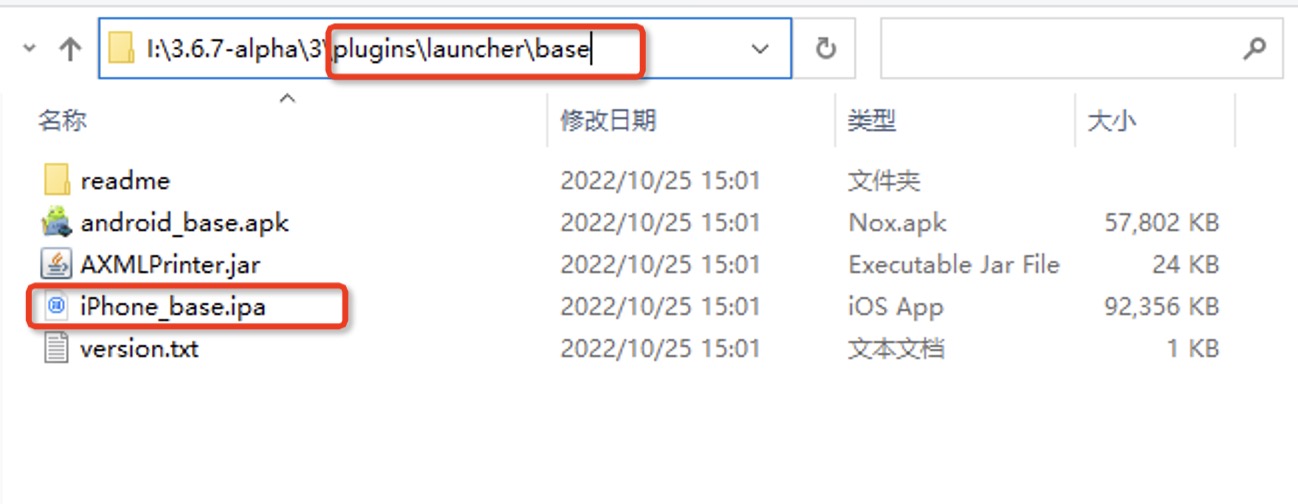
Windows, iOS standard base path: HBuilderX installation directory\plugins\launcher\base\iPhone_base.ipa, as follows:
The following describes how to use Aisi Assistant to sign the iOS standard base.
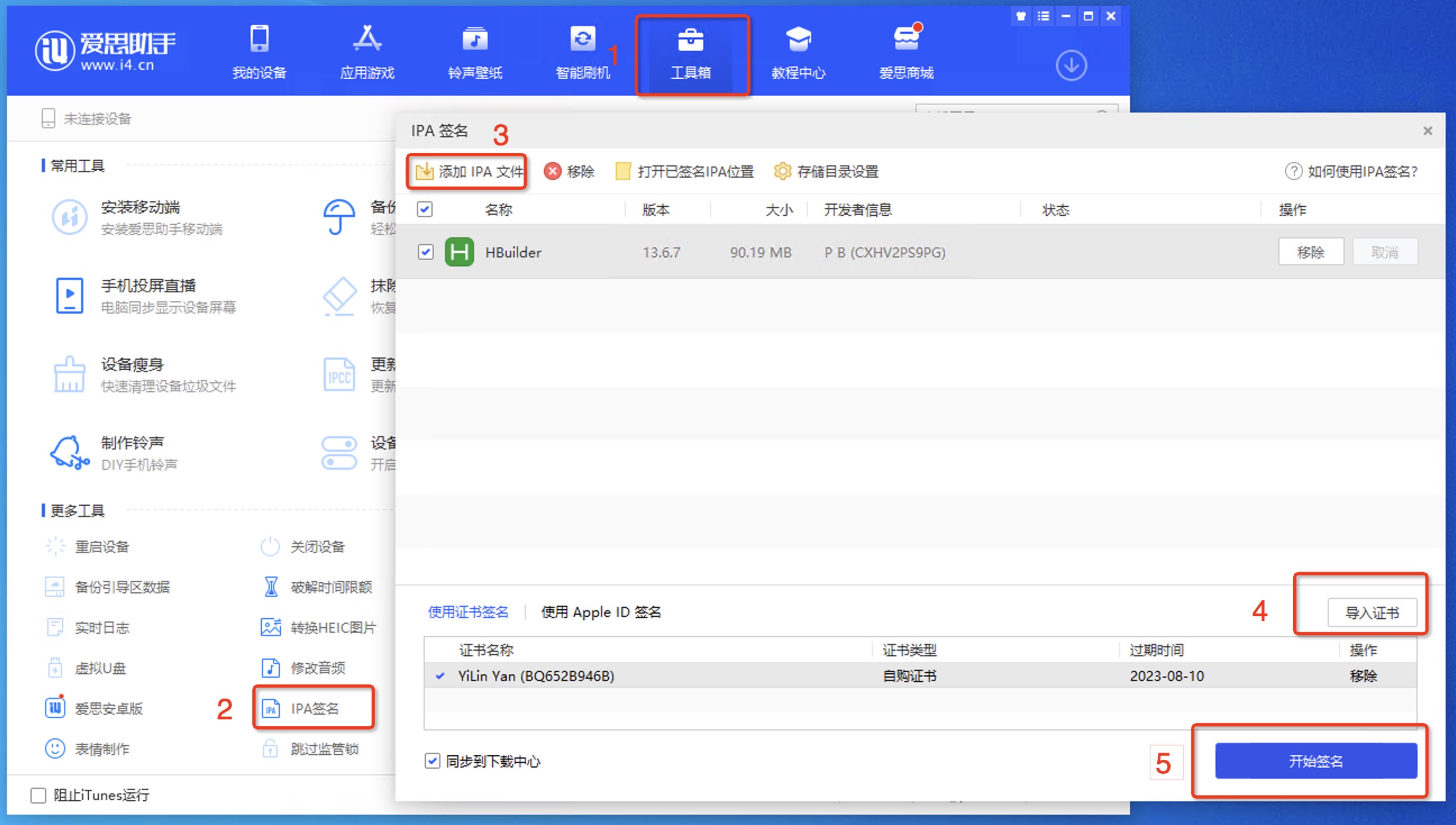
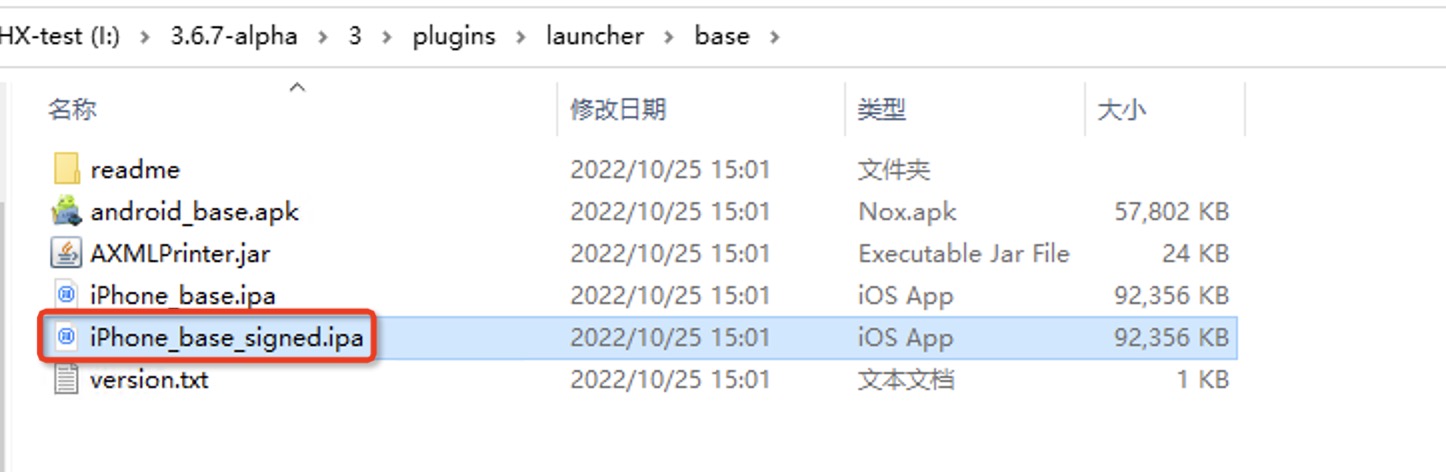
If the signature is successful, Aisi Assistant will prompt that the signature is successful. After the signature is successful, find the signed ipa file and name it iPhone_base_signed.ipa, and then copy it to HBuilderX installation directory\plugins\launcher\base.
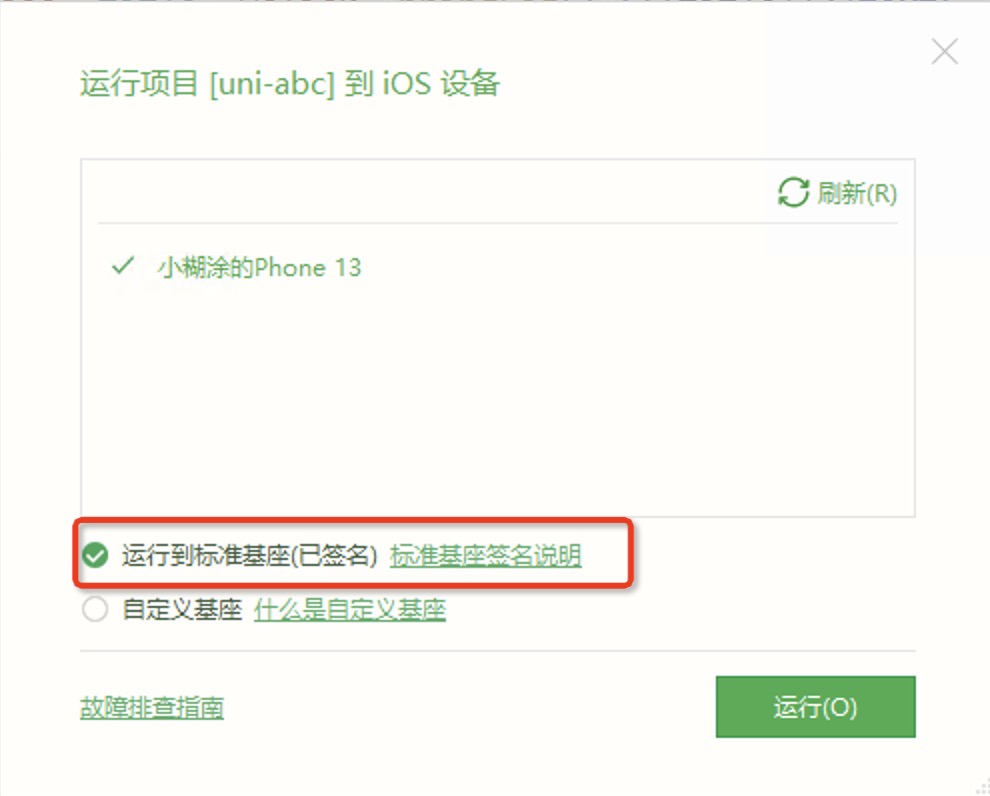
After the above operations are completed, open HBuilderX, select the project to run, click the run icon on the toolbar, and select [Run to iOS App Dock], as shown in the figure below, you can run the standard dock to the real iOS device.